
Information
If you work for the United States Postal Service, then the LiteBlue login portal is something you use — or should be using — on a regular basis. From checking your pay stubs to managing health benefits and work schedules, LiteBlue is the central hub for everything work-related at USPS.
Yet many employees still struggle with the login process, forget their credentials, or run into errors they don’t know how to fix. This guide covers everything you need to know — from logging in for the first time to solving the most common access problems.
What Is LiteBlue USPS?
LiteBlue is an internal online portal of the United States Postal Service for its employees to access important job-related information. The system allows USPS employees to manage their work schedules, view payroll and benefits details, track job performance, and update personal information. It serves as a centralized hub for over 700,000 postal workers across the U.S.
The portal was launched in the early 2000s and has since become an essential part of daily operations for postal employees. Whether you are a full-time career employee or a part-time associate, you have access to this platform as long as you hold an active Employee ID.
Who Can Access LiteBlue?
The portal is for current USPS employees — including career, non-career, and some affiliates — who have an Employee Identification Number (EIN). Retirees may have limited access depending on their account status.
What Can You Do on LiteBlue?
Before going through the login steps, it helps to understand what the portal actually offers. LiteBlue’s wide range of features includes employee self-service, ePayroll access, job bidding, benefits management, and secure messaging, making it an indispensable resource that provides a centralized platform for managing work-related activities.
Here is a breakdown of the key sections inside the portal:
ePayroll — This service allows USPS employees to efficiently access and manage their payroll history, including viewing and printing payment records for up to the last 40 transactions. You can also set up or change direct deposit details directly from this section.
PostalEASE — This tool handles benefits enrollment including health insurance, dental, vision, and Flexible Spending Accounts. It becomes especially important during USPS Open Season each year.
Work Schedule & Leave — Employees can view their assigned schedules, request leave, and check remaining leave balances all in one place.
Career Development — The job bidding feature allows employees to apply for internal transfers and promotions without going through paper forms.
Personal Information Updates — You can update your address, phone number, and emergency contacts directly through the portal.
How to Complete the LiteBlue Login — Step by Step
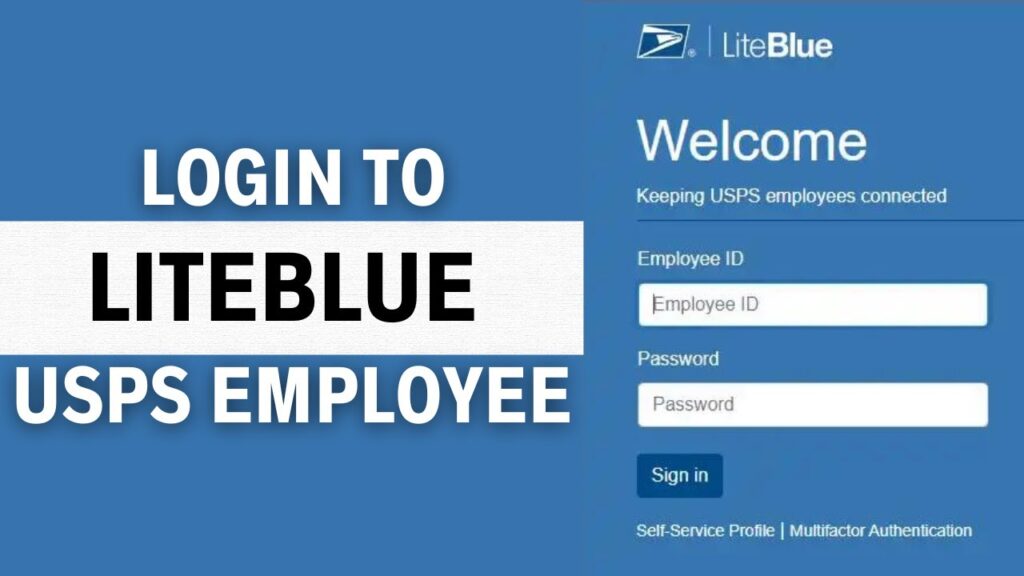
Getting into your account is straightforward once you know what credentials to use. To log in, you need two things: your Employee Identification Number (EIN) and your USPS Self-Service Password.
Follow these steps carefully:
Step 1 — Go to the Official Website
Open your browser and navigate to liteblue.usps.gov. Always use the official .gov domain. Third-party lookalike sites exist and pose serious security risks to your account.
Step 2 — Enter Your Employee ID
Enter your 8-digit Employee Identification Number in the “Employee ID” field. This number was given to you when you were onboarded at USPS. You can also find it on your pay stub.
Step 3 — Enter Your Self-Service Password
Enter your USPS Self-Service Password. Double-check for typos, as the system is case-sensitive. This password was either set during onboarding or reset through the Self-Service Profile (SSP) system.
Step 4 — Complete Multi-Factor Authentication
After entering your credentials, you will be asked for MFA — a one-time code sent via text, voice call, or an authenticator app. This is mandatory for all employees and adds a critical layer of security to your account.
Step 5 — Access Your Dashboard
Once verified, you land on your personalized LiteBlue homepage where all services are available through clearly labeled menu options.
A Note on Multi-Factor Authentication (MFA)
To bolster security and safeguard sensitive data, USPS implemented mandatory Multi-Factor Authentication on January 15, 2023. If you were previously using email as your MFA method, note that the verify-by-email option was retired on August 29, 2024, so you must switch to text message or an authenticator app. Additionally, as of November 2025, employees can reset their MFA by clicking on the “Self-Service MFA Reset” link on the LiteBlue login screen and submitting the request, after which a manager approves it.
Common LiteBlue Login Problems and How to Fix Them
Even experienced users run into trouble from time to time. Here are the most frequent issues and their solutions.
Wrong Employee ID or Password
This is the most common cause of failed logins. Double-check that you are entering all 8 digits of your EIN and that Caps Lock is not on when typing your password.
Forgot Your Password
If you face difficulty logging in due to password issues, you can easily reset it on the LiteBlue login page by clicking “Forgot Password” and following the prompts to create a new one. You will need access to your registered phone number or email to receive the reset verification.
Account Lockout
USPS has a policy to lock accounts after multiple unsuccessful login attempts. If this happens, wait for a specified period, or contact the support team for assistance in regaining access.
Browser or Cache Issues
An outdated browser or accumulated cookies and cache can sometimes interfere with the login process. The fix is simple — clear your browser cache or switch to a supported browser. LiteBlue is optimized for modern browsers such as Google Chrome, Mozilla Firefox, and Safari. Ensure your browser is up-to-date for the best experience.
MFA Not Working
If you are not receiving your MFA code, confirm your registered phone number is active. Also check whether you are using a retired verification method. If the problem persists, use the Self-Service MFA Reset option directly on the login screen.
Server Downtime
Occasionally, the USPS servers go down for maintenance. If nothing else seems wrong on your end, wait a few minutes and try again. You can also check USPS system status through the official USPS About page.
How to Set Up a New Self-Service Profile (SSP)
First-time users or employees who have never created an SSP need to complete registration before logging in for the first time.
Creating your Self-Service Profile ensures access to all LiteBlue services. To do this, visit liteblue.usps.gov and click the option to create a new SSP. You will need your Employee ID, date of birth, and some personal verification information to complete the process. Once your SSP is active, use those credentials for every future login.
Security Tips Every USPS Employee Should Follow
Protecting your LiteBlue account is not optional — it safeguards your pay information, personal data, and work records.
Always log in from a trusted device. Avoid using public Wi-Fi networks when accessing the portal. Regularly update your password and consider changing it periodically for added security. Never share your Employee ID or password with anyone, including coworkers.
Also, bookmark the official site at liteblue.usps.gov to avoid accidentally landing on phishing sites that mimic the real portal. For more information on secure digital practices, the CISA (Cybersecurity and Infrastructure Security Agency) offers free resources for government employees.
FAQ Section
What is the official website for LiteBlue login?
The official portal is located at liteblue.usps.gov. This is the only legitimate URL for accessing your USPS employee account. Avoid any third-party sites that claim to offer LiteBlue access, as they may be phishing attempts.
What do I need to complete the LiteBlue login process?
You need two things: your 8-digit Employee Identification Number (EIN) and your USPS Self-Service Password. Since January 2023, Multi-Factor Authentication is also mandatory, so you will need a registered phone or authenticator app to receive your verification code during the liteblue login process.
How do I reset my LiteBlue password?
Go to liteblue.usps.gov and click the “Forgot Password” link on the login screen. Follow the prompts using your Employee ID and registered contact information. If you cannot complete the reset online, contact the USPS HR Shared Services Center for manual verification.
Why is my LiteBlue account locked?
Your account gets locked after several consecutive failed login attempts as a security measure. Wait for the lockout period to expire and try again with the correct credentials. If the issue continues, call the USPS IT Support help desk for manual unlock assistance.
Can I access LiteBlue from my phone?
Yes. LiteBlue is accessible from any mobile browser by visiting liteblue.usps.gov on your phone. There is no dedicated official mobile app, so the browser-based version is the correct way to access it on iOS or Android.
What is PostalEASE inside LiteBlue?
PostalEASE is a benefits management tool within the LiteBlue portal. Employees use it during USPS Open Season to enroll in or make changes to health insurance, dental plans, vision coverage, and Flexible Spending Accounts.
What should I do if LiteBlue is not loading?
First, check your internet connection and clear your browser cache. Switch to a supported browser like Chrome or Firefox if the problem persists. If the portal appears completely down, it may be scheduled maintenance on the USPS side — try again after 30 minutes.
